Access to Pelican
Sydhavnen
Here you’ll find everything you need to know about access, parking, and moving items in and out at Pelican Sydhavnen. You need the Pelican app to gain access.
How to enter/Pelican Smart Access
From your move-in date, you have access to the centre from 05:30 to 22:00 every day, 365 days a year.
To access your storage unit for the first time, you must download the Pelican Smart Access app on your mobile phone.
It is important that mobile data is enabled, as the app requires internet access in order to be used and to grant access.
Open Pelican Smart Access and tap the + sign at the bottom.
Enter the code you received by SMS when you booked your unit.
Unlock
You will now see Pelican Sydhavnen in the app, which you must tap.
Access points
Here you will now have an overview of all the access points you can use, as well as other relevant information about your storage unit.
Open access by finding the number shown next to the gate/door you are standing at.
Find the number in the app and swipe to the right. Access will now open and will close automatically again.
Loading/unloading area
When you arrive, you can choose between 2 entrances to reach your unit.
Entrance 1 is located to the left of the large entrance gate; here you can easily drive your car into our loading and unloading area.
Open the app, find number 1, and swipe to the right to open the gate.
There is a sensor in the gate that keeps it open if something is underneath it.
If the vehicle is parked fully inside the area, the gate will automatically close again.
Gate 5
To open the gate and drive out again, find number 5 in the app and swipe to the right.
Entrance 2
Entrance 2 is the large entrance gate, where there is also space for your trailer or moving van, and you can unload under cover here as well.
There is no time limit when you are in the loading and unloading area, as long as you are loading or unloading, but please remember to make room for others).
Parking is permitted for a maximum of 2 hours in the standard parking spaces on our premises.
Entrance to the centre
To open the sliding doors, open the app and find number 3.
Swipe to the right, and the sliding door will then open.
When you enter, there will be signs further ahead to guide you to the lift.
Please note that it is one-way traffic and the exit is at the opposite end at no. 6. Use the app to open it.
Customer trolleys
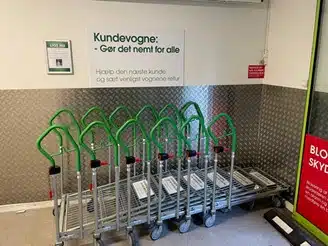
When you enter the loading hall, there are customer trolleys that you can use free of charge.
There is a limited number of trolleys, so please use a maximum of 2 per customer, so there are trolleys for everyone.
Please help the next customer and return the trolleys when you are finished.
Overview of floors and access
to the lift
At the end of the entrance area, on the right, you will find the lifts.
Find your unit number and see which floor you need to go to. For your information, the first digit in your unit number is the floor you need to go to.
Example: Unit 3124 is on the 3rd floor.
Floor overview – find your unit
When you reach the floor where your unit is located, you will find an overview of the entire floor on the wall directly opposite the lifts.
The green cross marks where you are. The overview shows where on the floor your unit is located and which direction you need to go.
There will be signs like in the picture showing which direction you need to go to reach your unit.
Start using your unit
Once you have found your unit, it is very important that you double-check that you are at the correct unit number.
To find your unit, make sure you choose the unit closest to the unit number (sticker) you have been given.
Open the unit by sliding the metal rail on the door to the right, and the door can be opened.
Inside the unit, a welcome bag/box will be ready for you, containing a new, security-approved cylinder lock with matching keys.
There is also an information letter, which you are very welcome to read through and keep.
You can now start using the unit.
How to lock and open the unit
How to lock the unit
Close the door and slide the metal rail all the way to the left. Insert the cylinder lock into the hole, turn the key to the left, and remove it.
If the lock is difficult to insert, the two dots on the cylinder must face upwards and align.
Watch the video: How to lock the unit.
How to open the unit
Insert the key into the lock, turn to the right, and pull out the cylinder. Slide the metal rail all the way to the right and open the door.
Watch the video: How to open the unit.
Are you experiencing problems?
If you experience problems with your access or the app, please contact the store or call +45 39 75 50 10.
The store’s opening hours are Mon–Fri: 09:30–18:00, Sat: 10:00–14:00.
- Check that mobile data is enabled and that you are standing close to the place you want to open
- Allow location sharing for the app in your phone’s settings
In an emergency outside the store’s opening hours, call +45 33 98 60 06 to reach our alarm centre.
Directions to Pelican Sydhavnen
Practical information about access
- Easy access to your storage unit
- Access to storage units every day 05.30–22.00 (if this is the correct time for Amagerbro)
- Parking available at the centre
- Excellent loading and unloading facilities
- Transport trolleys available
- Lift access to storage units on other floors
- Personal help and advice during the centre’s opening hours
How to find Pelican Sydhavnen
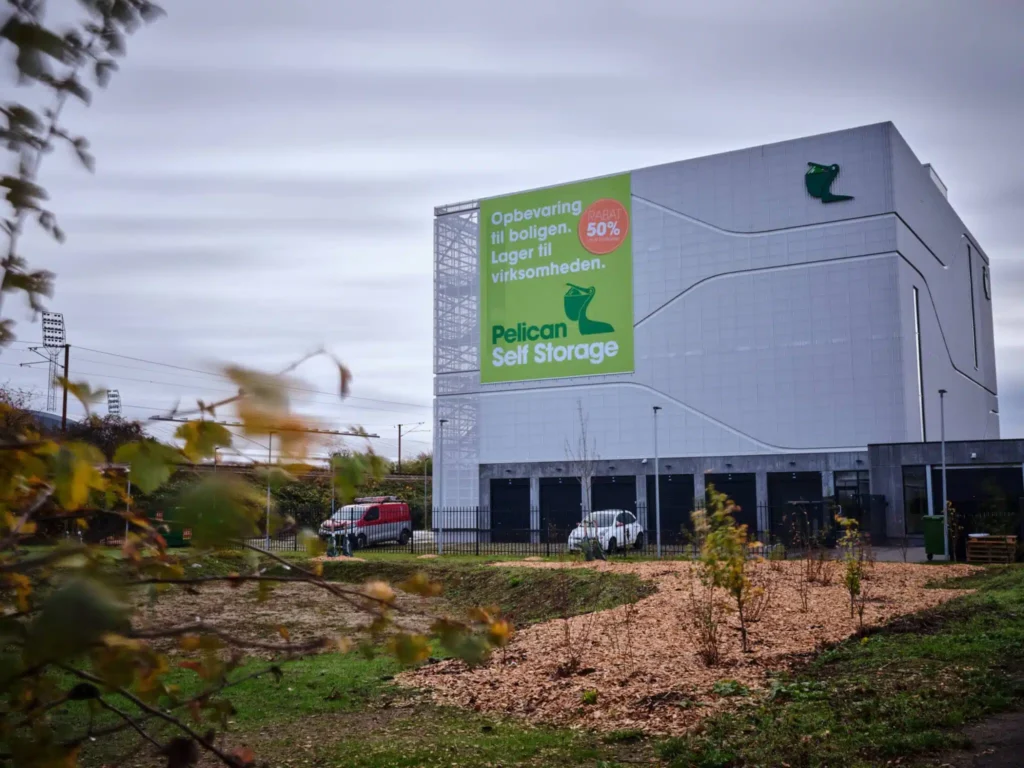
Pelican Sydhavnen is located close to Teglholmen, Enghave, Islands Brygge, Sluseholmen and Sydhavn Station. Here, both private customers and businesses will find storage units and storage space from 1 to 40 m², as well as a covered loading and unloading area.
Use the map to find the easiest route to Pelican Sydhavnen. If you have any questions about access, parking, or storage, you are always welcome to contact the centre.