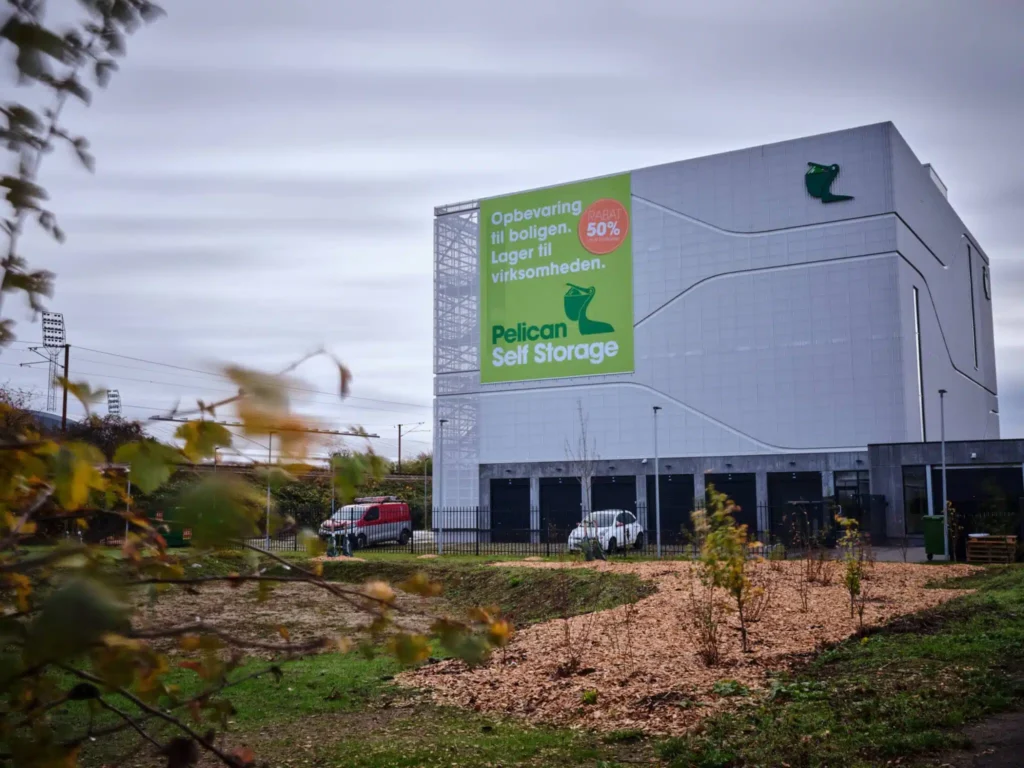
1. How to get in

Once the move-in date on your room has started, you have access to the center from 05:30 - 22:00 every day, 365 days a year.

To get in:

  • Download the Pelican Self Storage Ellebjerg - Valby app on your phone, or use the link provided.
  • Make sure Bluetooth and location are turned on and that you are standing close to the entrance.
  • Allow location sharing for the app in your phone settings.

To get to your storage unit, enter through the gate and into the unloading hall.

Find "Port in" in the app and swipe to open.

Here you can easily drive your car or trailer in to unload in the dry and access the elevators.

NOTE: If your car/moving van is taller than 2.80 meters, it is too high to drive through the gate to the hall. Instead, drive through the grid gate. Open the gate in the "Gate to garages" app.

Here you can park your moving truck/trailer and unload and enter via the sliding door. For loading and unloading only.

To get out, follow the road around the building and exit through the exit gate on the other side. Click on "exit gate" in the app.

2. Loading and unloading hall

When you enter the hall, you can park your car on the right side (marked with "P").

Drive as far forward as possible to make room for others.

To get out again, drive out the gate at the other end.

Tap the "Port out" button in the app to open the port.

3. Customer trolleys

Inside the unloading hall, there are customer carts that are free to use.

Help the next customer and please put the carts back when you're done.

4. Overview of floors and elevator access

By the elevators there are signs with an overview of where to find the room numbers on the different floors.

Find your room number in the app and see which floor you are going to.

The first number in your room number is the floor you are going to. Example: Room 2306 is on the 2nd floor.

Call either elevator A or B by tapping one of them in the app and immediately after, tap the floor you are going to inside the elevator.

It's important that you press the floor button quickly after activating it in the app

5. Find your room

When you reach the floor where your room is located, you can easily find your room by either simply following the numbers and signs or by tapping "Find device" in the app.

By tapping on "Find device", you can activate an alarm at your room so you can find your way to the room via the sound of the alarm.

6. Put your space to use

Once you have found your room, you can now open the lock/room via your app.

Tap your room number in the app, the lock will then automatically open and the light next to the room will turn green.
Open the room by pushing the metal rail on the door to the side and the door can be opened.
Inside the room, a welcome bag is ready for you with an information letter that you are welcome to read through and keep.

You can now put the room to use 😊

7. How to lock the room

When the room needs to be locked, simply close the door and the light next to the room will turn red.

With a regular door, the metal rail must be pushed back in and the room is locked.

  1. For garage doors, simply roll the door down and the room is locked.
  2. Check that the light is red before you leave the site.

8. Exit

To get off the elevator, simply press "0" with the green ring around it. It is not necessary to use the app when you want to take the elevator down again.

Customer toilet is located on the ground floor - use the app and then press 0 without green ring to access the toilet.

If you experience problems with your access or the app, please contact the store or call +45 39 75 50 12
Store opening hours are Mon - Fri: 10.00 - 17.00 Sat: 10.00 - 14.00

  • Make sure Bluetooth is turned on and that you are standing close to where you want to open
  • Allow location sharing for the app in your phone settings

For emergencies outside store opening hours, please call +45 33 98 60 06